Best Books on Building and Repairing PCs
This curriculum takes a beginner from zero hardware knowledge to confident builder, troubleshooter, and maintainer. Each stage builds on the last: first you learn how PCs work and what the parts are, then you learn to choose and assemble them, then you master diagnostics and repair, and finally you develop the professional-level skills to upgrade, optimize, and keep a machine running long-term.
Foundations: How PCs Work
BeginnerUnderstand what every major PC component is, what it does, and how the parts interact — building the vocabulary needed for every later stage.
▸ Study plan for this stage
Pace: 4–5 weeks, ~20–25 pages/day (approximately 2–3 hours/week of focused reading)
- The CPU as the computer's brain: how it executes instructions, clock cycles, and the fetch-execute cycle
- Memory hierarchy: RAM, cache, and storage—their speeds, capacities, and roles in data access
- The motherboard as the central hub: chipsets, buses, and how components communicate
- Power supply and thermal management: how electricity flows through a PC and heat dissipation
- Input/output systems: how peripherals (keyboard, mouse, monitor, storage) connect and communicate with the PC
- Graphics processing: GPU basics and how visual data is rendered and displayed
- Data representation: bits, bytes, binary, and how information is encoded in computers
- Boot process and BIOS/UEFI: how a PC initializes and loads the operating system
- Explain the fetch-execute cycle and describe what happens during each phase when a CPU processes an instruction
- Compare RAM, cache, and storage drives in terms of speed, capacity, and purpose—why does a computer need all three?
- Draw a block diagram of a PC's major components and label the buses/connections that allow them to communicate
- What is the role of the chipset on a motherboard, and how does it facilitate communication between the CPU and other components?
- Describe the path electricity takes from the power supply through a PC's components, and explain why voltage regulation and cooling matter
- How does a GPU differ from a CPU, and what specific task does it perform that makes it valuable for gaming or graphics work?
- Create a labeled diagram of a PC's internal layout, identifying the CPU, motherboard, RAM, power supply, storage drives, and cooling system based on White's illustrations
- Write a one-page summary of the fetch-execute cycle in your own words, then trace through a simple instruction (e.g., 'add two numbers') step-by-step
- Build a comparison table: CPU vs. GPU, RAM vs. SSD, cache vs. RAM—include speed, capacity, cost, and use case for each
- Open the case of an old or spare PC (or watch a detailed teardown video) and physically identify the major components you've read about; match them to White's diagrams
- Explain the boot sequence from power-on to operating system load in 5–7 sentences, referencing BIOS/UEFI and the role of the motherboard
- Create a 'data journey' flowchart showing how a keystroke (e.g., typing a letter) travels from keyboard → motherboard → CPU → RAM → GPU → monitor
Next up: This stage equips you with the vocabulary and mental models of PC architecture needed to diagnose problems and understand upgrades; the next stage will apply this knowledge to hands-on troubleshooting, diagnostics, and component selection for real-world repair scenarios.
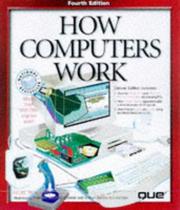
A richly illustrated, concept-first introduction to every layer of a PC — from transistors to the operating system. Reading this first ensures no later term or concept feels mysterious.
The industry-standard beginner reference for PC hardware and software. Meyers explains components, connectors, and compatibility in plain language, giving you the full vocabulary map before you spend a dollar on parts.
Choosing & Matching Parts
BeginnerKnow how to research, compare, and select compatible components for any build goal and budget, understanding bottlenecks and value trade-offs.
▸ Study plan for this stage
Pace: 4–5 weeks, ~40–50 pages/day (approximately 280–350 pages total across both books)
- CPU and GPU selection based on use case (gaming, productivity, streaming) and how they interact with motherboards and power supplies
- RAM compatibility: DDR generation, speed (MHz), capacity needs, and motherboard socket matching
- Storage hierarchy: SSD vs. HDD trade-offs, NVMe vs. SATA, capacity planning for different workloads
- Power supply sizing: calculating total wattage needs, 80+ efficiency ratings, and headroom for stability
- Motherboard selection: socket type, chipset features, form factor (ATX, mATX, ITX), and BIOS compatibility
- Cooling solutions: air vs. liquid cooling, thermal design power (TDP) matching, and case airflow planning
- Bottleneck identification: recognizing when components limit each other's performance and how to balance value
- Budget allocation strategies: prioritizing spending on GPU/CPU vs. other components based on build goals
- How do you determine the correct power supply wattage for a given CPU and GPU combination, and why is headroom important?
- What is a bottleneck, and how do you identify whether your CPU or GPU is the limiting factor in a build?
- How do you match RAM to a motherboard in terms of DDR generation, speed, and socket compatibility?
- What are the key differences between NVMe and SATA SSDs, and when would you choose each for a specific build?
- How do motherboard chipset and socket type affect component compatibility and upgrade paths?
- Given a budget and use case (e.g., 1080p gaming, 4K video editing), how would you allocate spending across CPU, GPU, RAM, and storage?
- Build a complete parts list for three different scenarios (budget gaming, productivity workstation, streaming PC) using PCPartPicker or similar tool, documenting your reasoning for each component choice
- Calculate the total system power draw for a mid-range gaming build and select an appropriate PSU with 20–30% headroom; compare 80+ Bronze vs. Gold efficiency ratings and their long-term cost impact
- Research and compare three different motherboards in the same chipset family; identify differences in VRM quality, connectivity, and BIOS features, then match each to an appropriate CPU tier
- Create a compatibility matrix for a given CPU socket, listing 5 compatible motherboards and 5 compatible RAM kits with their speeds and prices; identify the best value option
- Analyze a poorly balanced build (e.g., high-end GPU with budget CPU) and rebalance it for better performance-per-dollar, documenting the bottleneck and your trade-off decisions
- Compare storage configurations for two builds (gaming vs. video editing): calculate total capacity needed, recommend SSD/HDD split, and justify NVMe vs. SATA choices based on workload
Next up: This stage equips you with the knowledge to select and justify every component in a build; the next stage will teach you the physical assembly process and how to safely install these matched parts into a case.

Bridges the gap between 'knowing what parts are' and 'knowing how to shop for them,' with practical guidance on compatibility, budgeting, and matching a build to a use case.
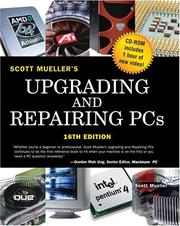
The definitive deep-dive reference on every component category — CPUs, motherboards, RAM, storage, and more. Read it here to understand the technical specifications that drive part selection before you start buying.
Troubleshooting & Diagnostics
IntermediateSystematically diagnose hardware and software failures, interpret POST codes and error messages, isolate faulty components, and perform component-level repairs.
▸ Study plan for this stage
Pace: 4–5 weeks, ~40–50 pages/day. Start with the printer-focused book (1–2 weeks) to build diagnostic fundamentals, then transition to the pocket reference for rapid-lookup skills and broader troubleshooting patterns (2–3 weeks). Allocate 2–3 days per week for hands-on lab work alongside reading.
- POST codes and beep sequences as diagnostic indicators—what each pattern signals about hardware failure locations
- Printer troubleshooting methodology: paper path, toner/ink delivery, electrical connections, and firmware issues as a model for systematic component diagnosis
- Error message interpretation and logging—using system messages and diagnostic tools to narrow down root causes
- Component isolation techniques: swap testing, substitution methods, and elimination strategies to identify faulty hardware
- Power supply and thermal diagnostics—recognizing symptoms of PSU failure and overheating as common failure modes
- BIOS/firmware diagnostics and boot sequence failures—understanding how to read startup errors and access diagnostic modes
- Pocket reference navigation and quick-lookup skills for rapid problem identification in field conditions
- What does a continuous beep code indicate, and how does it differ from a pattern of short and long beeps in POST diagnostics?
- Walk through the paper path in a printer and explain how you would systematically troubleshoot a paper jam or feed failure.
- You encounter a 'No bootable device found' error. What are the three most likely hardware components involved, and in what order would you test them?
- How would you use the PC technician's pocket reference to quickly identify whether a symptom is power-supply-related versus motherboard-related?
- Describe the difference between a hardware failure that produces an error message versus one that produces only a POST code or beep sequence.
- If a printer produces faint output, what are the two primary diagnostic paths (consumables vs. electrical/mechanical), and what tests would you perform for each?
- Build a personal POST code reference card: document 10–15 common beep patterns and their meanings from Bigelow's book; test recall weekly.
- Disassemble and reassemble a non-functioning printer (or watch detailed video teardowns if hardware unavailable); identify the paper path, toner delivery system, and electrical connections; document each step.
- Perform component swap testing on a malfunctioning PC: systematically replace RAM, hard drive, and power supply (one at a time) to isolate the faulty component; document symptoms before and after each swap.
- Create a troubleshooting flowchart for three common scenarios (no power, boot failure, printer jam) using the pocket reference as your source; validate each decision point against the book.
- Practice rapid-lookup drills: given 10 error messages or symptoms, use only the pocket reference to identify the likely cause and first diagnostic step within 2 minutes per item.
- Simulate a field call: given a broken PC or printer, use only the pocket reference (no internet) to diagnose and repair it; time yourself and document your process.
Next up: Mastery of systematic diagnostics and component isolation prepares you to advance to component-level repair techniques—understanding how to not just identify a failed part, but safely replace, solder, or reprogram it.

Bigelow is one of the most respected authors in PC repair; this book teaches a rigorous fault-isolation methodology that transfers directly to diagnosing any PC subsystem.
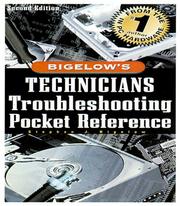
A compact, symptom-indexed reference to keep at the bench — read after the methodology book so you can quickly look up error codes, beep codes, and failure patterns mid-diagnosis.
Upgrading, Optimization & Long-Term Maintenance
ExpertExtend the life of any machine through strategic upgrades, performance tuning, preventive maintenance, and data-protection practices.
▸ Study plan for this stage
Pace: 8–10 weeks, ~40–50 pages/day (focusing on Chapters 8–15 covering upgrades, optimization, and maintenance; can be adjusted based on hands-on lab time)
- Strategic hardware upgrades (RAM, storage, CPU, GPU) and compatibility assessment to extend system lifespan
- Performance optimization techniques including disk management, registry cleaning, startup optimization, and driver updates
- Preventive maintenance protocols: cleaning, thermal management, cable organization, and environmental controls
- BIOS/UEFI configuration for stability, boot optimization, and hardware monitoring
- Data protection and backup strategies (full system backups, incremental backups, recovery partitions)
- Troubleshooting performance degradation and identifying bottlenecks using diagnostic tools
- Cost-benefit analysis of upgrades versus replacement and lifecycle planning for systems
- What factors should you evaluate before recommending a RAM or storage upgrade, and how do you verify hardware compatibility?
- Describe a complete preventive maintenance routine for a desktop PC, including frequency and specific tasks for thermal, mechanical, and electrical health.
- How do you optimize Windows startup performance and what role do driver updates play in system stability?
- What backup strategies would you implement for a small business with 10 workstations, and why is a 3-2-1 backup approach recommended?
- How do you diagnose whether a performance issue stems from hardware limitations, software bloat, or malware?
- When is it more cost-effective to upgrade a system versus replacing it, and how do you communicate this to a client?
- Perform a full system audit on a test machine: document current specs, identify upgrade bottlenecks, and create a prioritized upgrade plan with cost estimates
- Execute a complete preventive maintenance routine (cleaning internals, reseating RAM/cables, checking thermal paste, organizing cables) and document before/after thermal readings
- Optimize a Windows system by disabling startup programs, updating drivers, cleaning temporary files, and defragmenting/optimizing storage; measure boot time improvement
- Set up a multi-tier backup solution using Windows Backup or a third-party tool; create a full backup, then an incremental backup, and practice system restore
- Use diagnostic tools (CPU-Z, GPU-Z, HWiNFO, CrystalDiskInfo) to monitor system performance under load and identify thermal or resource bottlenecks
- Create a maintenance schedule document for a hypothetical client (small office, gaming enthusiast, or home user) specifying tasks, frequency, and tools needed
Next up: This stage equips you with the practical skills to extend system life through proactive care and strategic upgrades; the next stage will likely focus on advanced troubleshooting, enterprise-level infrastructure, or specialized systems (servers, networking) where these maintenance principles scale to larger, more complex environments.
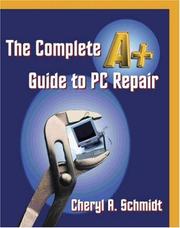
Closes the curriculum with a professional technician's perspective on preventive maintenance schedules, upgrade decision frameworks, and keeping a machine reliable over years of use.
Discussion
Keep reading
Paths that share books, cover the same subject, or open a related topic.