Learn PowerShell: The Best Books for Automation
This curriculum takes a complete beginner from zero PowerShell knowledge to advanced sysadmin-level automation and scripting mastery across four carefully sequenced stages. Each stage builds directly on the vocabulary, concepts, and muscle memory developed in the previous one, ensuring no gaps in understanding before tackling enterprise-grade topics.
Foundations: Learning the Language
BeginnerUnderstand PowerShell's core syntax, the pipeline, cmdlets, objects, and basic scripting constructs so you can write and run simple scripts with confidence.
▸ Study plan for this stage
Pace: 4 weeks, ~25–30 pages/day, with 2–3 days per week dedicated to hands-on practice
- PowerShell cmdlet syntax and naming conventions (Verb-Noun pattern)
- The PowerShell pipeline and object-oriented data flow
- Working with objects, properties, and methods instead of text streams
- Aliases, help system, and discovery techniques (Get-Command, Get-Help)
- Variables, data types, and basic operators in PowerShell
- Control flow structures: if/else, loops (foreach, while), and switch statements
- Functions and script blocks for code reuse and organization
- Error handling and debugging basics (Try/Catch, Write-Error)
- What is the Verb-Noun naming convention for cmdlets, and why does PowerShell use it?
- Explain how the PowerShell pipeline works and how objects flow between cmdlets.
- What is the difference between piping objects in PowerShell versus piping text in traditional shells?
- How do you discover available cmdlets and get help for a specific command?
- Write a simple script that uses variables, a loop, and conditional logic to solve a practical problem.
- What are the key differences between aliases and cmdlet names, and when should you use each?
- How do Try/Catch blocks work, and why is error handling important in scripts?
- Describe the structure of a PowerShell function and explain when to use functions in your scripts.
- Complete the 'Month of Lunches' hands-on labs for each chapter, typing every example rather than copy-pasting.
- Write a script that lists all running processes, filters by memory usage, and displays results in a formatted table using the pipeline.
- Create a function that accepts parameters and returns filtered data from Get-ChildItem; test it with different inputs.
- Use Get-Help and Get-Command to explore 5 cmdlets you've never used before; document their syntax and use cases.
- Write a script with at least one if/else statement and one loop that automates a simple system task (e.g., file organization, user listing).
- Debug a deliberately broken script by using Write-Host for output inspection and identifying logic errors.
- Build a script that combines 3–4 cmdlets in a pipeline, demonstrating how objects transform at each stage.
- Create a script with error handling (Try/Catch) that gracefully handles a common failure scenario (e.g., missing file, invalid input).
Next up: This stage equips you with the language fundamentals and scripting patterns needed to move into advanced topics like modules, remoting, and production-grade script design in the next stage.
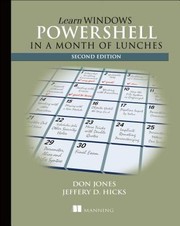
The single best entry point for absolute beginners — structured as short, daily lessons that build intuition for the pipeline and object model without overwhelming you. Read this first to establish the mental model everything else depends on.
Scripting Fundamentals: Writing Real Scripts
BeginnerWrite structured, reusable scripts with functions, parameters, error handling, and modules — transitioning from one-liners to maintainable automation code.
▸ Study plan for this stage
Pace: 4–5 weeks, ~40–50 pages/day (approximately 280–350 pages total across both books)
- Script structure and organization: writing .ps1 files with proper formatting, commenting, and code blocks instead of one-liners
- Functions as reusable code units: defining parameters, return values, scope, and best practices for function design
- Parameter binding and validation: using [Parameter()] attributes, mandatory vs. optional parameters, type constraints, and ValidateSet/ValidateRange
- Error handling with try-catch-finally: distinguishing terminating vs. non-terminating errors, using $ErrorActionPreference, and implementing robust error recovery
- Script modules: creating .psm1 files, exporting functions, managing module scope, and packaging reusable code for distribution
- Advanced function features: pipeline support, ValueFromPipeline binding, Write-Verbose/Write-Debug for logging, and proper output handling
- Code reusability patterns: avoiding code duplication, designing functions for composition, and building toolkits for automation
- Debugging and testing scripts: using Set-PSDebug, breakpoints, and Pester framework basics for validation
- What is the difference between a script and a function, and when should you use each in your automation work?
- How do you define a function with mandatory and optional parameters, and what is the purpose of the [Parameter()] attribute?
- Explain the difference between terminating and non-terminating errors in PowerShell, and how do you handle each type?
- What is a module, and how do you create and export functions from a .psm1 file for reuse across scripts?
- How does pipeline binding work with ValueFromPipeline, and why is it important for writing composable PowerShell functions?
- What are best practices for structuring a production script, including commenting, error handling, and parameter validation?
- Convert three of your existing one-liners into properly structured .ps1 scripts with comment blocks, parameter sections, and function definitions
- Write a function that accepts 2–3 mandatory parameters and 2–3 optional parameters with validation (e.g., ValidateSet, ValidateRange); test each parameter path
- Create a script that intentionally triggers both terminating and non-terminating errors, then implement try-catch-finally blocks to handle them gracefully
- Build a simple module (.psm1) with 3–4 related functions (e.g., Get-SystemInfo, Get-ProcessMetrics, Get-DiskUsage); export them and import the module in a separate script
- Write a function that accepts pipeline input using ValueFromPipeline; pipe multiple objects through it and verify the output
- Refactor an existing script to use Write-Verbose and Write-Debug statements; run it with -Verbose and -Debug flags to confirm output
- Create a script with at least 5 functions that work together to solve a real automation task (e.g., user account management, log file analysis); document each function's purpose and parameters
Next up: This stage equips you with the discipline and patterns to write maintainable, reusable automation code; the next stage will deepen your ability to handle complex real-world scenarios, advanced error recovery, and enterprise-scale tooling.

The natural sequel to the first 'Month of Lunches' book, this one focuses specifically on scripting patterns, functions, and script design — exactly the bridge from interactive use to real automation.

Goes deeper into building professional-grade tools and modules following best practices. Read after the scripting lunches book to learn how to package and share your automation properly.
Intermediate Mastery: Automation & Windows Administration
IntermediateApply PowerShell to real Windows administration tasks — Active Directory, remoting, WMI/CIM, scheduled jobs, and system management at scale.
▸ Study plan for this stage
Pace: 6–8 weeks, ~40–50 pages/day (focus on Part 3 & 4: "Advanced Techniques" and "Windows Administration")
- Remote execution and session management (Enter-PSSession, Invoke-Command, implicit remoting)
- Active Directory querying and manipulation using Get-ADUser, Get-ADGroup, and LDAP filters
- WMI and CIM cmdlets for system inventory, performance monitoring, and hardware management
- Job scheduling with scheduled jobs and background jobs (Start-Job, Wait-Job, Receive-Job)
- Error handling at scale using try-catch-finally and $ErrorActionPreference in production scripts
- Credential management and secure authentication for administrative tasks
- Pipeline optimization and performance tuning for large-scale operations
- Building reusable modules and functions for Windows administration workflows
- How do you execute commands on remote computers using PowerShell, and what are the security and configuration requirements?
- What is the difference between WMI and CIM cmdlets, and when should you use each for system administration?
- How would you query Active Directory to find all users in a specific group and disable their accounts programmatically?
- Explain the difference between background jobs and scheduled jobs, and provide a scenario where each is appropriate.
- How do you implement robust error handling in a production script that manages multiple remote systems?
- What are the best practices for managing credentials securely in PowerShell administration scripts?
- Set up PowerShell remoting on 2–3 test machines and execute a script that queries system information from all of them simultaneously using Invoke-Command.
- Write a script that queries Active Directory to find all disabled user accounts created in the last 30 days, then export the results to CSV.
- Create a WMI/CIM query script that retrieves disk space, memory usage, and running services from a remote computer and formats the output as a custom object.
- Build a scheduled job that runs every 6 hours to check for failed services on a list of servers and sends an email alert if any are found.
- Develop a reusable PowerShell module with functions for common AD tasks (Get-ADUsersByDepartment, Disable-ADUser, Reset-ADPassword) with proper error handling.
- Write a script with comprehensive error handling that attempts to restart a service on multiple remote computers, logs failures, and retries failed attempts.
Next up: This stage equips you with the practical skills to manage Windows infrastructure at scale; the next stage will deepen your ability to build enterprise-grade solutions by covering advanced scripting patterns, DSC (Desired State Configuration), and CI/CD integration for infrastructure automation.
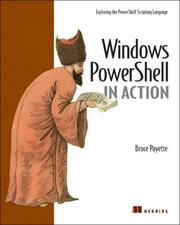
Written by one of PowerShell's original designers, this is the most thorough treatment of the language internals and advanced features. Read here to understand *why* PowerShell works the way it does, not just how.
Advanced: DevOps, Security & Enterprise Scale
ExpertMaster advanced topics including PowerShell security, DevOps pipelines, DSC (Desired State Configuration), and cross-platform scripting for enterprise environments.
▸ Study plan for this stage
Pace: 6–8 weeks, ~40–50 pages/day with hands-on labs
- PowerShell security hardening: execution policies, code signing, constrained language mode, and JEA (Just Enough Administration)
- Advanced remoting and multi-server management at scale using PSRemoting, sessions, and credential delegation
- Desired State Configuration (DSC): resources, configurations, pull/push modes, and LCM (Local Configuration Manager)
- Error handling, logging, and monitoring strategies for production environments
- Cross-platform PowerShell (PowerShell Core) for Linux and macOS in enterprise DevOps workflows
- Automation patterns for infrastructure provisioning, deployment pipelines, and continuous compliance
- Performance optimization and troubleshooting in large-scale deployments
- Integration with cloud platforms (Azure, AWS) and containerization (Docker, Kubernetes)
- How do you implement Just Enough Administration (JEA) to restrict user capabilities while maintaining administrative control?
- What are the differences between push and pull modes in DSC, and when should each be used in an enterprise environment?
- How can you secure PowerShell scripts and enforce code signing across an organization?
- What strategies would you use to manage and monitor hundreds of servers using PowerShell remoting at scale?
- How do you design error handling and logging to meet compliance and troubleshooting requirements in production?
- What are the key considerations for running PowerShell scripts on Linux and macOS in a DevOps pipeline?
- Set up a JEA endpoint on a test server and configure role capabilities to restrict a user to specific administrative tasks; verify access and limitations
- Build a DSC configuration for a multi-server environment (web server, database server, domain controller) and deploy using both push and pull modes
- Create and sign a PowerShell script with a code-signing certificate; configure execution policy and test enforcement across multiple machines
- Write a production-grade error handling and logging framework for a multi-server deployment script, including retry logic and audit trails
- Develop a cross-platform PowerShell script that runs on Windows, Linux, and macOS; test conditional logic and platform-specific cmdlets
- Build an automated infrastructure provisioning script that deploys VMs, configures them with DSC, and integrates with Azure or AWS
- Create a monitoring and compliance script that checks DSC drift across 50+ servers and reports deviations; implement remediation workflows
Next up: This stage equips you with enterprise-grade automation, security, and infrastructure-as-code skills; the next stage would deepen specialization in either cloud-native DevOps (Kubernetes, containerized workloads), advanced security operations (threat hunting, incident response automation), or specialized domains like database administration or network automation.

A capstone-level book that ties together scripting, automation, and real sysadmin problem-solving into complete, end-to-end projects — the ideal final read to consolidate everything into expert-level practice.
Discussion
Keep reading
Paths that share books, cover the same subject, or open a related topic.