Best Books on Excel VBA and Macros, in Reading Order
Almost nobody learns VBA for its own sake — they learn it because a spreadsheet task has become intolerable, and the fastest route is to record a macro and then find out what it actually did. This path starts by making sure your Excel itself is strong, moves through the recorder into real VBA syntax and the object model, then to user forms, events and cross-application automation, and finishes with the professional development practices that keep a large workbook from becoming unmaintainable.
Excel first, then the recorder
BeginnerKnow Excel well enough to recognise which tasks genuinely need code, record and edit your first macros, and read simple VBA without alarm.
▸ Study plan for this stage
Pace: 6-8 weeks. Do not read the Excel 2019 Bible cover to cover — it is 1,120 pages of reference. Spend two weeks working through the chapters on tables, lookups, pivot tables and Power Query specifically, and keep the rest on the shelf. Excel Macros for Dummies is 304 pages and should be worked rather t
- The Bible's real job here is to stop you writing code you do not need. Structured tables, XLOOKUP or INDEX/MATCH, pivot tables, and Power Query solve a large share of what people reach for macros to do, and they survive being handed to someone else in a way a macro does not
- The specific test for whether a task needs VBA: does it require branching logic, iteration over things Excel does not iterate over, interaction with another application, or a response to an event? If not, a formula or Power Query is the better answer
- The macro recorder as a code generator and a teaching tool — record an action, open the Visual Basic Editor with Alt+F11, and read what it produced. That loop is how this stage works
- Why recorded code is bad code, specifically: it uses Select and Activate for everything, it hard-codes the cells you happened to click, and it records the entire state of a dialog rather than the one setting you changed
- Absolute versus relative recording, which is the recorder's one genuinely useful setting and the source of most confusion about why a recorded macro breaks on the second run
- The VBE itself — the Project Explorer, the Properties window, the Immediate window, and the fact that F8 steps through code one line at a time while you watch the worksheet. Learn F8 in this stage and you will debug everything faster forever
- The basic syntax Walkenbach introduces: Sub and Function, Dim and variable types, If and Select Case, For and Do loops, and the Range and Worksheet objects that everything else attaches to
- Macro security and file formats — a workbook with code must be saved as .xlsm, and macros arrive disabled by default. Knowing this saves the classic hour of wondering why nothing runs
- Give three specific tasks that look like macro work and are better done with Power Query or a pivot table. Why is each better?
- Record a macro that formats a range, then read the generated code. Which lines are doing the work and which are recording settings you never touched?
- What does Select actually do, and why is Range("A1").Value = 5 better than selecting A1 and typing? Answer in terms of what the recorder cannot know
- What breaks when a macro recorded in absolute mode is run with a different cell selected? Demonstrate it rather than describing it
- What is the difference between a Sub and a Function, and when does the distinction matter?
- Take a repetitive task you actually do in a real spreadsheet, record it, and then rewrite the recording by hand to remove every Select and Activate. This one exercise teaches more than any chapter
- Take five of Alexander's ready-made macros and modify each to work on a workbook of your own. Modification is the fastest route into the syntax, which is exactly why that book is here
- Step through a twenty-line macro with F8 while watching the worksheet, and write down what each line changed. Do this until you stop guessing what a line does
- Rebuild one thing you would have macro'd as a Power Query query instead, and write a paragraph on which version you would rather hand to a colleague
- Start a personal snippets file — a plain module where you keep working code with a comment on what it does. You will be adding to it for the rest of the path
Next up: You can now record, read and modify code, which means the next stage's job is to make you write it from a blank module against the object model rather than from a recording.

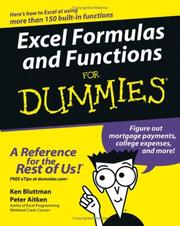
Start here rather than with VBA. A great many problems people try to solve with macros are solved better by tables, lookups, pivot tables or Power Query, and this is the definitive reference for all of them.

Task-oriented and deliberately shallow: seventy or so ready macros you can record, paste and adapt. The fastest possible first win, and it teaches by modification rather than theory.
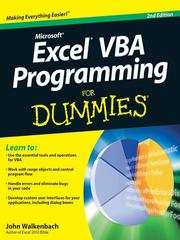
The step from copying macros to writing them — variables, loops, conditions, the Range and Worksheet objects. Read after Alexander, when you have working code you want to understand.
Real VBA
BeginnerWrite procedures from scratch against the Excel object model, handle errors properly, and build user forms and event-driven behaviour rather than only recorded steps.
▸ Study plan for this stage
Pace: 16-20 weeks. Microsoft Excel 2019 VBA and Macros (624 pages) is the spine — eight weeks at a chapter every few days, typing the examples rather than reading them. Run the Excel VBA 24-Hour Trainer (504 pages) in parallel rather than after: do its lessons and exercises as practice for whatever Jelen
- The Excel object model as a hierarchy: Application contains Workbooks contains Worksheets contains Ranges, with collections at each level. Roman's book is the one that teaches this as a structure rather than as a list of recipes, which is what stops you guessing at syntax
- The difference between a property and a method, and between an object and a collection — the distinction that makes the Object Browser (F2) usable and error messages legible
- Range referencing done properly: Cells, Offset, Resize, End(xlUp), CurrentRegion and UsedRange, and why the last row of data should be found rather than assumed
- Working with arrays instead of cells: reading a range into a variant array, processing in memory, writing it back in one operation. This is the single biggest performance difference in VBA and Jelen covers it directly
- Error handling as design rather than decoration — On Error GoTo with a labelled handler, Err.Number, and the fact that On Error Resume Next is a targeted tool for one expected failure, not a way to silence a program
- Events: worksheet Change and SelectionChange, workbook Open and BeforeSave, and the discipline of disabling events inside a handler that itself modifies cells so you do not recurse
- User forms — controls, their event procedures, modal versus modeless, and the rule that the form should collect input and call a procedure rather than contain the logic itself
- Application.ScreenUpdating, Calculation and EnableEvents as the standard performance trio, with the obligation to restore them in your error handler
- Explain the object model hierarchy from Application down to a single cell, and name a collection at each level
- Given a sheet of unknown length, write three different ways to find the last row of data. Which is safest and why?
- Why is reading a range into an array so much faster than looping over cells? Explain in terms of what crosses between VBA and Excel
- When is On Error Resume Next correct, and what does it cost you when it is not? Give a concrete example of each
- A worksheet Change event handler that writes to a cell will fire itself. What is the standard fix, and what happens if your error handler exits before restoring the setting?
- Take a macro from stage 1 that loops over cells and rewrite it to read into an array, process, and write back. Time both with a Timer call and record the difference. Seeing your own numbers is the point
- Work Urtis's lesson exercises for the chapters matching whatever Jelen has just covered. Do the exercises the same week you read the explanation, not later
- Use the Object Browser to answer three questions you would normally have searched for — what arguments a method takes, what a property returns, what a constant's value is. Building this reflex is what Roman's book is for
- Build one user form that collects three inputs, validates them, and calls a separate procedure to do the work. Then confirm you can change the logic without touching the form
- Write an error handler for a procedure that opens another workbook, and test it by deleting the file. Then test it by locking the file. Two different failures, and a good handler distinguishes them
- Add every reusable procedure you write to the snippets file you started in stage 1
Next up: You can write real procedures against the object model, which is the prerequisite for driving applications other than Excel and for building tools rather than macros.

The best all-round working text: the object model, ranges, pivot tables, charts, user forms, arrays and error handling, all with the practical bias of two people who automate spreadsheets for a living.
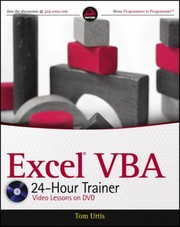
Structured lessons with exercises, which suits VBA because the language is learned by repetition against a live workbook. Use it alongside Jelen to actually practise what that book explains.
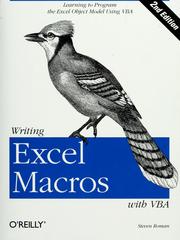
The most rigorous treatment of the object model as an object model — collections, properties, methods, the hierarchy — rather than as a list of recipes. This is the book that stops you from guessing at syntax.
Beyond one workbook
IntermediateAutomate across Word, Outlook and Access, drive external data, and structure larger projects with class modules, add-ins and a real user interface.
▸ Study plan for this stage
Pace: 18-22 weeks. Mastering VBA for Microsoft Office 365 (944 pages) is eight to ten weeks — read the shared-language chapters closely and the per-application chapters selectively, depending on what you actually need to automate. Excel 2010 Power Programming with VBA (1,061 pages) is ten to twelve weeks
- VBA as one language across Office, with a different object model per application. Once you can read one object model you can read the others, which is Mansfield's whole premise
- Early versus late binding: setting a reference in Tools > References gives you IntelliSense and compile-time checking, while CreateObject avoids version-specific reference breakage on other people's machines. Know which you are using and why
- The Outlook automation pattern that motivates most people to leave Excel — building a report, attaching it, addressing it and sending or displaying it — plus the security prompts and the fact that a displayed draft is often the better design than a silent send
- Word automation for document generation, and Access or ADO for querying a real database from a workbook rather than maintaining data in cells
- Class modules, which are the pivot in Walkenbach's book: defining your own object with properties, methods and events, so a complex workbook has named things rather than parallel arrays
- Custom worksheet functions written in VBA — their limitations (they cannot alter the sheet, they recalculate more than you expect) and where a UDF is the right answer rather than a macro
- Add-ins as the distribution unit: an .xlam that loads for the user, with the code separated from any workbook's data. This is where automation becomes a tool other people use
- Custom ribbon UI, which requires editing the workbook's XML outside VBA — a genuinely fiddly step and the main reason people stop short of a polished tool
- Explain early and late binding, and say which you would use for a tool distributed to a hundred machines with unknown Office versions
- When should a piece of logic be a UDF and when should it be a macro? Give an example of each and say what makes it so
- What does a class module give you that a Type or a set of parallel arrays does not? Answer with a concrete workbook design
- Why should an add-in contain no data? What goes wrong when it does?
- You have automated a report that pulls from a database, builds a workbook, and emails it. List every point at which it could fail on someone else's machine
- Build one end-to-end automation: query external data, produce a formatted Excel report, generate a Word summary or an Outlook draft, and save the output to a dated folder. This single project is the point of the stage
- Rewrite one of your stage-2 procedures using a class module — define the object, give it properties and methods, and see whether the calling code reads better. If it does not, you have found a case where a class is overkill, which is also worth knowing
- Convert your snippets file into an actual add-in (.xlam), install it, and use it from a fresh workbook. Then hand it to one other person and watch what breaks
- Write a custom worksheet function, then deliberately test its recalculation behaviour on a large sheet. Note what surprised you
- Add a custom ribbon tab to your add-in with two buttons. It is fiddlier than everything else in this stage and doing it once removes the mystery
Next up: You are now building tools other people run, which is exactly the point at which the practices in the final stage stop being optional.

Covers VBA as an Office-wide language, which is the point at which automation gets genuinely valuable — a macro that builds a report, emails it and files it. Read once Excel-only VBA feels comfortable.
The advanced Excel volume: custom worksheet functions, class modules, add-ins, custom ribbon UI and performance. The pivot from writing macros to building tools other people use.
Building things that last
IntermediateApply real software practice to VBA — architecture, separation of data and logic, error handling, testing, versioning and distribution — so an automation survives its author.
▸ Study plan for this stage
Pace: 16-20 weeks. The VBA Developer's Handbook (1,104 pages) is a technique reference — read the chapters on string and date handling, API calls, debugging and reusable libraries closely over six to eight weeks, and use the rest as lookup. Professional Excel Development is the hardest book on the path an
- Getz's central position, which is the reason the book is here: spreadsheet code is code, and deserves the same treatment as any other — reusable libraries, defensive input handling, real debugging technique rather than message boxes
- Windows API calls via Declare statements, including the PtrSafe requirement for 64-bit Office, and the fact that a wrong declaration crashes Excel outright rather than raising an error
- String and date handling done properly — VBA's date type, locale-dependent parsing, and why a date read from a text file is the single most common source of a bug that only appears on someone else's machine
- Bovey's three-layer architecture — separating the data layer, the business-logic layer and the presentation layer, so worksheet formatting changes do not touch calculation code and vice versa. This is the central idea of the final book
- The application structure Bovey advocates: a workbook or add-in with defined entry points, a global error handler, a logging mechanism, and no logic living inside event handlers or form code
- Testing VBA, which has no built-in framework: writing test procedures that assert against known inputs, keeping them in a separate module, and running them before distribution. It is manual and it still pays for itself
- Versioning and distribution — that .xlsm and .xlam files are binary and diff badly, and the practical responses: exporting modules to text for version control, a build process, and a documented install procedure
- Documentation and handover, which is what the stage title means. The measure of the work is whether someone else can maintain it after you leave
- Take one of your existing projects and identify where data, logic and presentation are tangled. What specifically would have to move for Bovey's separation to hold?
- Why does a wrong API Declare crash Excel rather than raise an error? What does that imply about how you should test one?
- A date parsed from a text file works on your machine and fails on a colleague's. What are the two most likely causes and how do you make the code immune to both?
- VBA has no test framework. Design a minimal one for a project of yours: what would a test procedure look like, and what would it assert?
- Your add-in is in a shared folder and three people use it. Describe the update process, and what happens if one of them has the old version open
- Refactor one existing project of yours into Bovey's three layers. Do the refactor rather than reading about it — this is the deliverable of the stage and the point at which everything before it is repaid
- Add a global error handler and a logging routine to that project, then deliberately break it three different ways and check the log tells you what happened
- Export every module in a project to .bas and .cls text files, put them under version control, and make one change through that workflow. Doing it once makes clear which parts of the process you would need to script
- Write a test module with at least ten assertions covering your business-logic layer, and run it before every change for a month
- Write the handover document for one of your tools — what it does, how it is installed, where the data comes from, what to check when it breaks. Then give the tool and the document to someone else and see whether they can run it without you. That test is the whole point of the stage
Next up: This is the end of the path: you can build an Excel automation that another person can install, run, understand and maintain after you have moved on.
Treats VBA as a general-purpose language deserving proper technique: reusable libraries, API calls, string and date handling, debugging. The clearest statement that spreadsheet code is still code.

The most advanced book on this path and the right close: application architecture, separating the data, business and presentation layers, add-in packaging, testing and deployment. This is what distinguishes a maintained tool from an inherited mess.
Discussion
Keep reading
Paths that share books, cover the same subject, or open a related topic.